Cherry Studio - Desktop AI Client
Cherry Studio Tutorial — Connecting the desktop AI client to Blue Whale API, one-click API Key entry. Built-in 30+ professional AI assistants, covering various work scenarios.
Chat Settings Options
In the Blue Whale API console's System Settings -> Chat Settings, you can add the following quick options for one-click filling into Cherry Studio on the token management page:
{ "Cherry Studio": "cherrystudio://providers/api-keys?v=1&data={cherryConfig}" }🍒 Cherry Studio is a powerful desktop AI client designed for professional users, integrating 30+ industry-specific intelligent assistants to meet the needs of various work scenarios and significantly improve work efficiency.
- Official Website: https://cherry-ai.com
- Download Link: https://cherry-ai.com/download
- Official Documentation: https://docs.cherry-ai.com
Blue Whale API Integration Method
Parameter Configuration
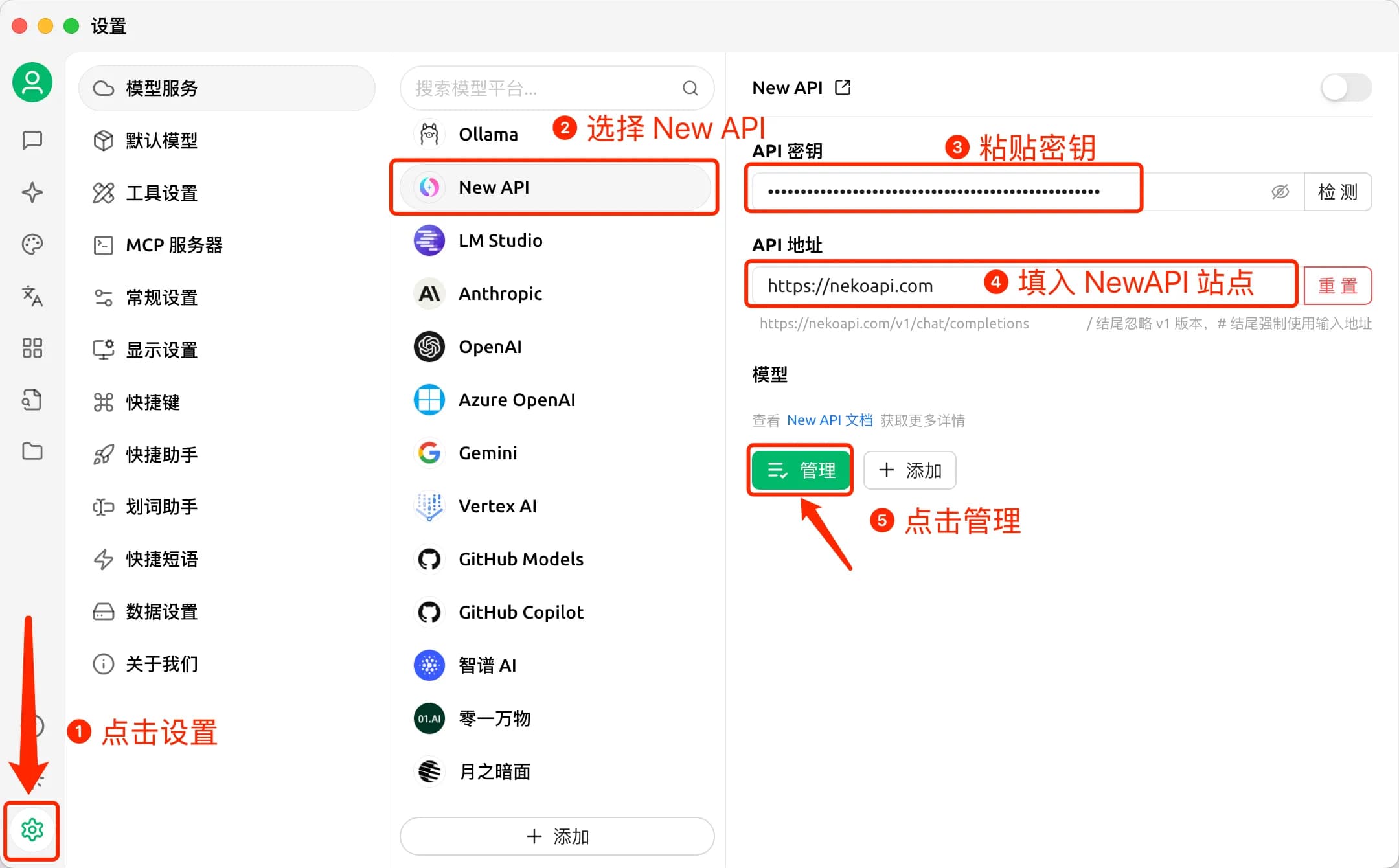
Provider Type: Types supported by Blue Whale API API Key: Obtained from Blue Whale API API Address: Blue Whale API Site Address
Please use your self-deployed Blue Whale API, or ensure that the service provider has a Blue Whale API service with legal upstream authorization and compliance obligations. Do not integrate API addresses or keys from unknown sources into a production environment.
Graphical Guide
-
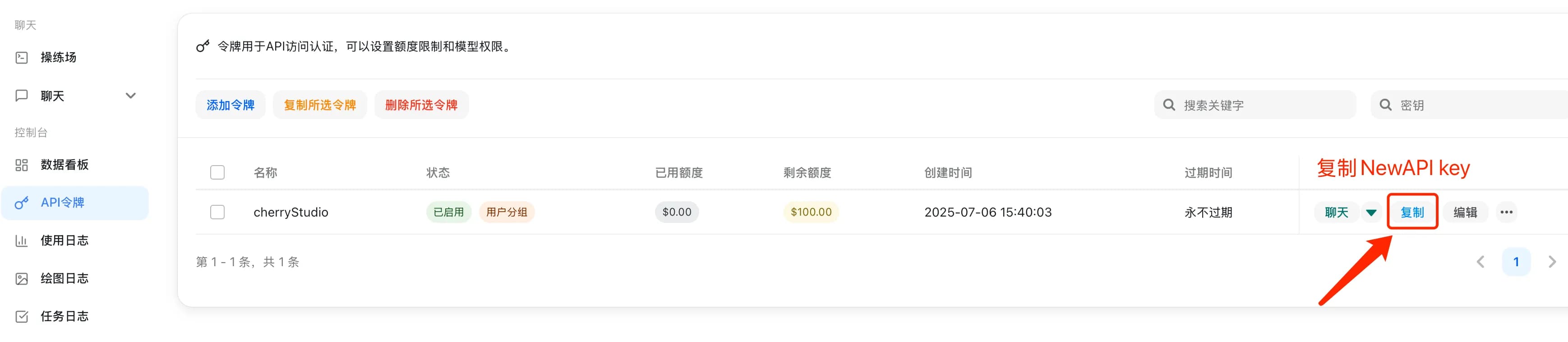
Copy API key in Blue Whale API
-
Add Provider
-
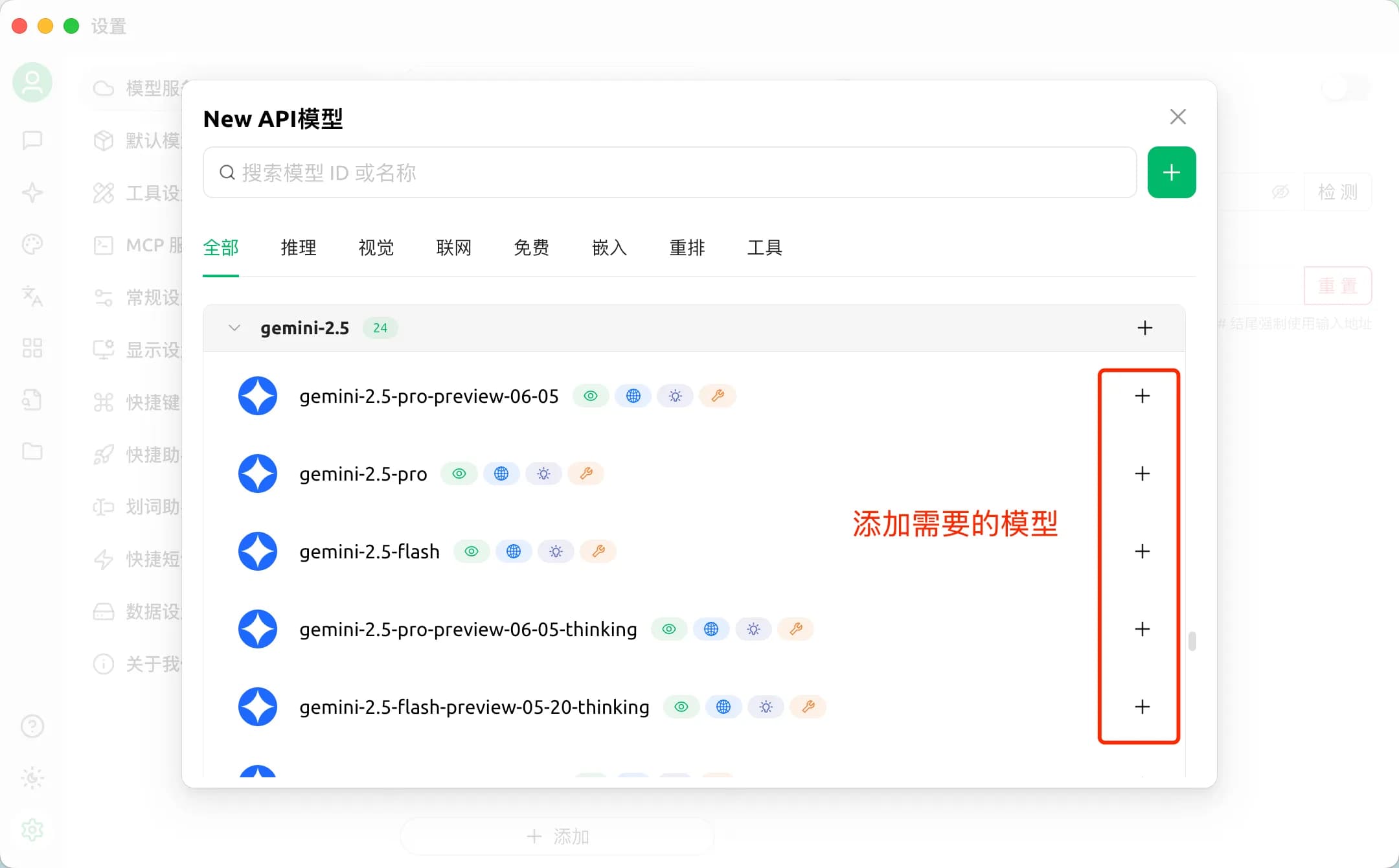
Add Model
-
Return to Chat Page
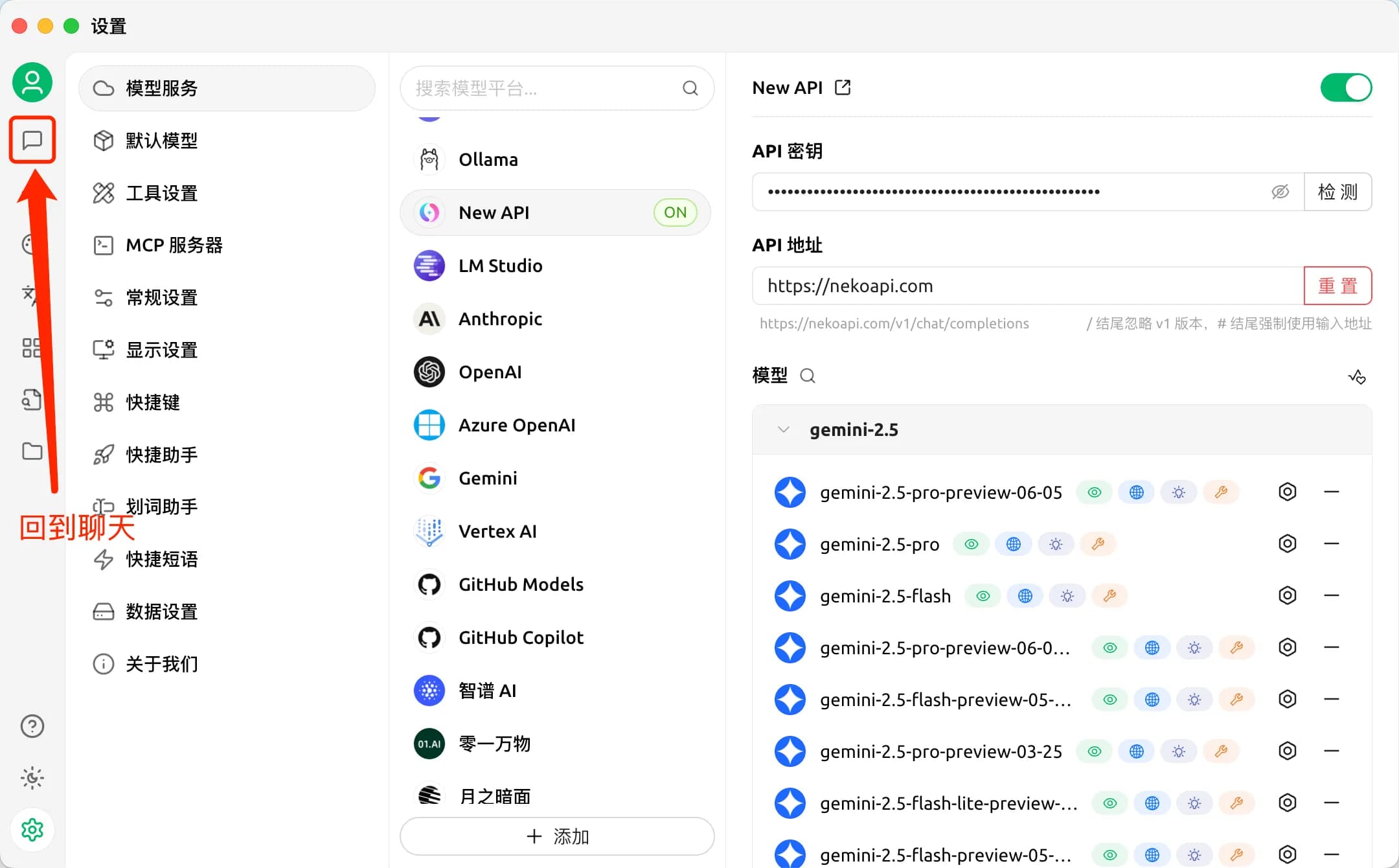
-
Switch Blue Whale API Model
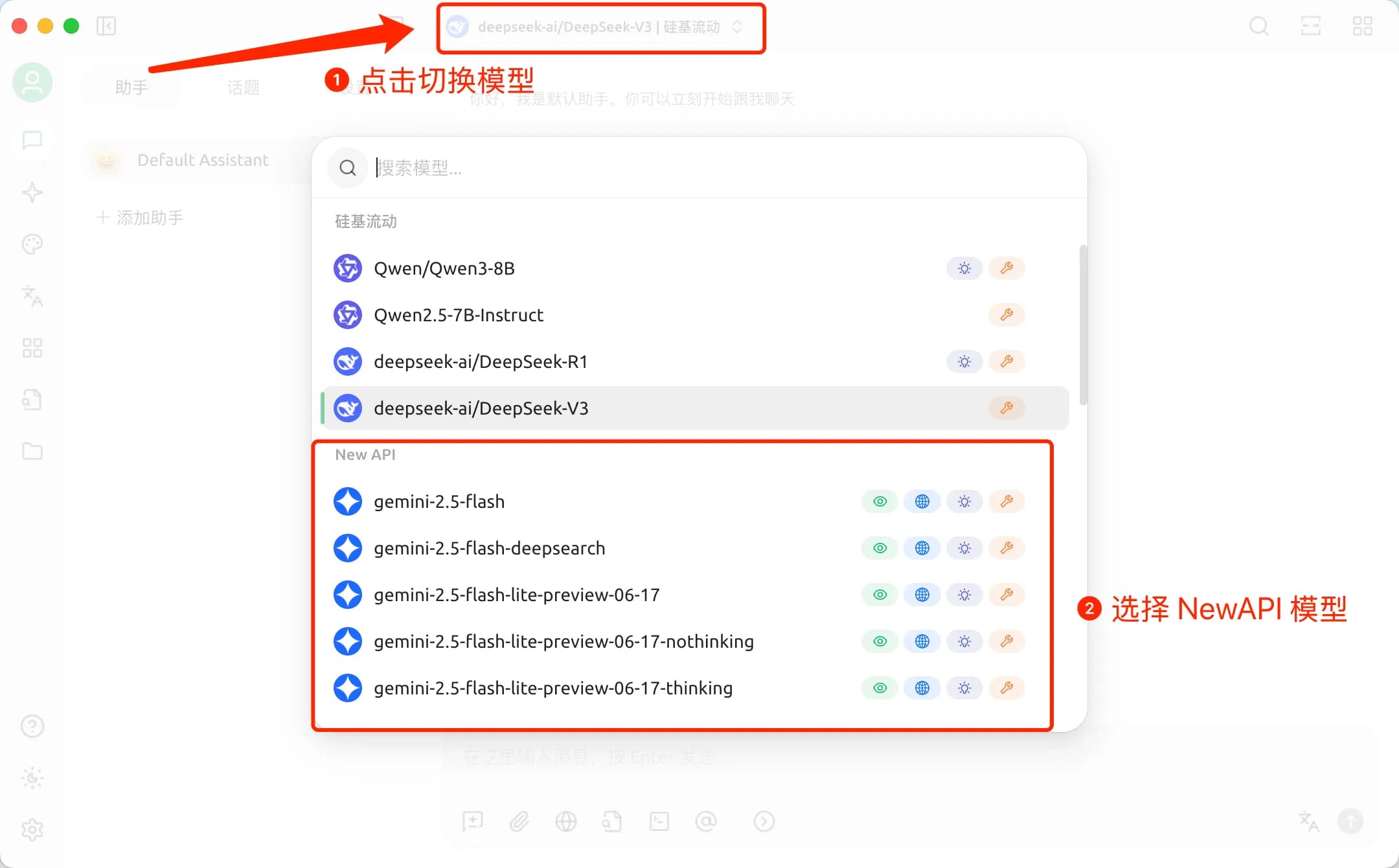
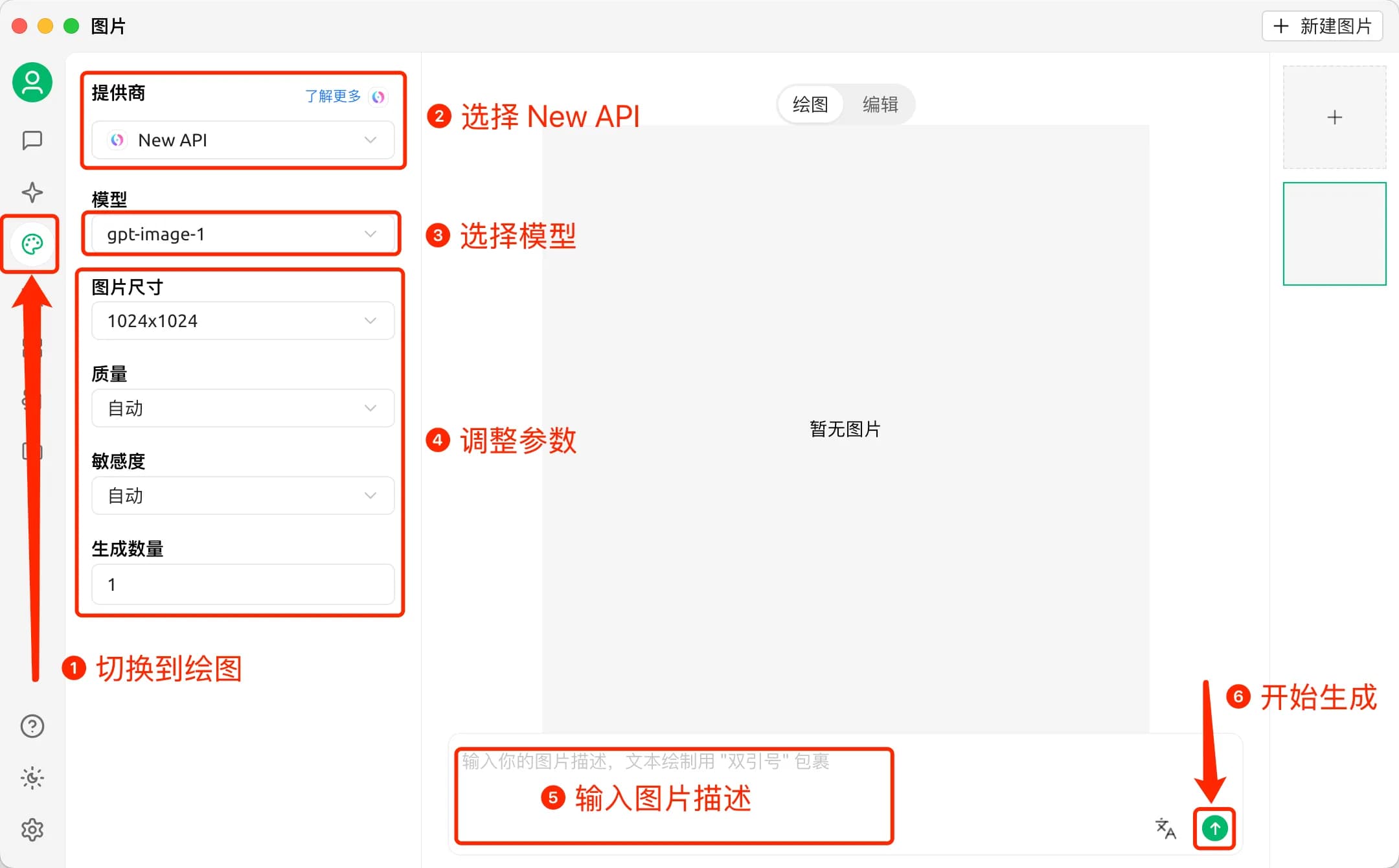
Drawing in Cherry Studio
-
First, add models that support drawing
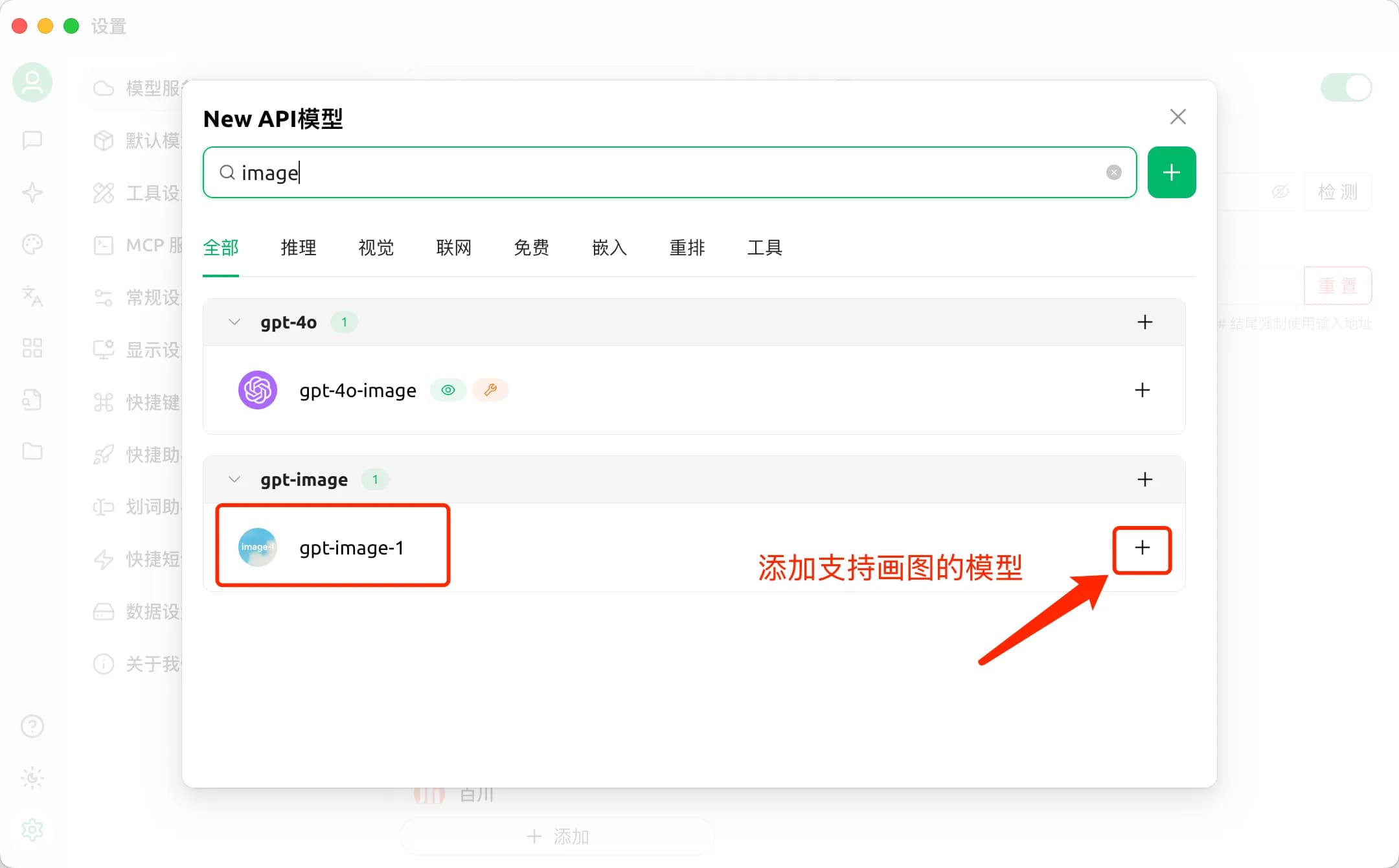
-
Draw